The Order Tracking screen lets you see the open orders for all of your accounts, view and edit order details, and see which accounts still need to place an order for their upcoming delivery day.
The following are features on this page and what you can do with each one.
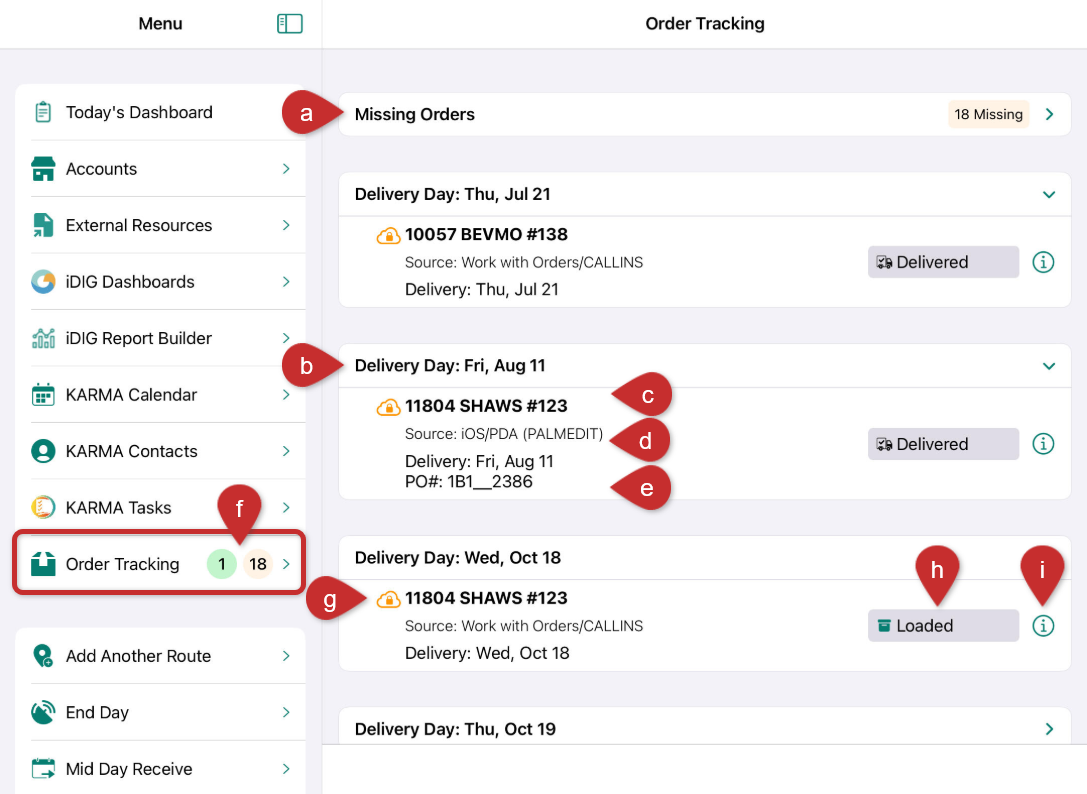
(a) Missing Orders: View a list of accounts that have not placed orders for their upcoming delivery day. This allows you to identify accounts that need to be contacted to ensure that they place their order before the cutoff time. Tap on an account to open the Account Details page.
(b) Delivery Day: View orders grouped by delivery day.
(c) Account: View the account ID number and name.
(d) Order source: See where the order originated, such as a sales rep’s mobile device or your ecommerce platform. See Understanding order origin codes to learn more.
(e) PO Number: View the PO number for the order.
(f) Order Tracking: Quickly view orders for your accounts, with icons indicating new orders submitted from outside the VIP Mobile apps and orders that may be missing. In this example, indicates one

(h) Order status: See whether the order is pending, accepted, staged, loaded, or delivered.
(i) Information button: Tap to access additional order details without leaving the order list.
Was this article helpful?
That’s Great!
Thank you for your feedback
Sorry! We couldn't be helpful
Thank you for your feedback
Feedback sent
We appreciate your effort and will try to fix the article