1. Click "Manage iSeries User IDs (CFGVIPEYE)"

2. Click on the Check Box next to DDC

3. Click on the drop down for the Actions Box
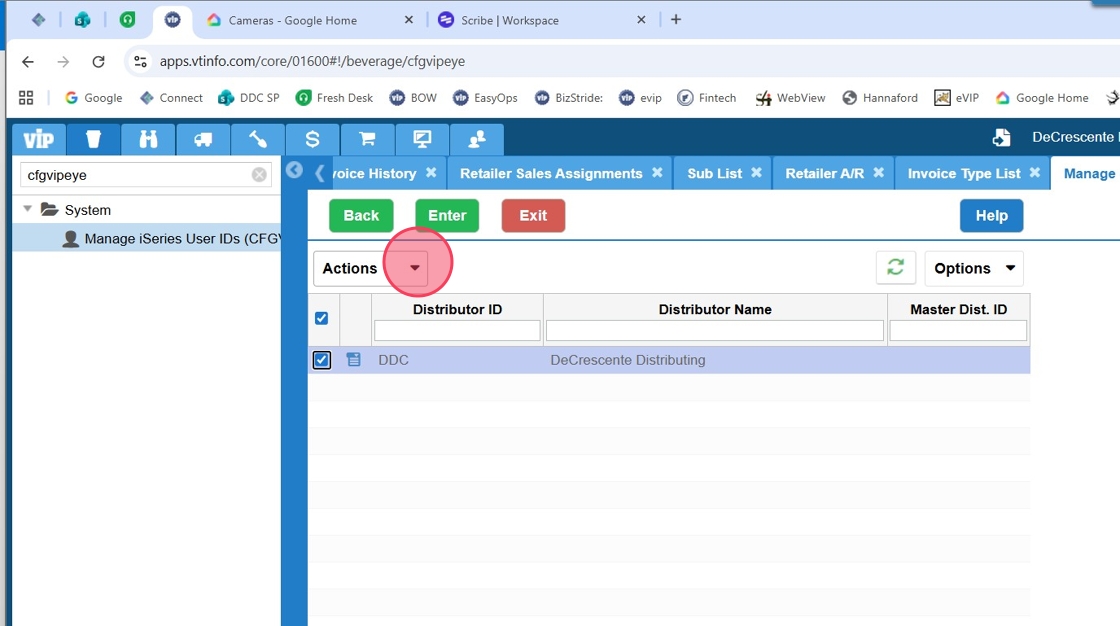
4. In the drop down Click on Users

5. To find a user, you can use any of the filters.

6. Click "Enter"

7. Click the check box next to the user who needs to be enabled.

8. Click on the drop down for the Actions Box

9. Click on Enable user.

Alert: There is no reason to click on any of the other options other than Enable User.
10. When you check the Reset password box, a screen will pop up with a temporary password. You can copy and paste this to give to the user to change the password before they are able to log on. Once you hit Enter, you will no longer see the temporary password.

11. Click "Enter" to enable the user

12. From here the user will be enabled and you can back out of the program to Beverage.
Made with Scribe
Was this article helpful?
That’s Great!
Thank you for your feedback
Sorry! We couldn't be helpful
Thank you for your feedback
Feedback sent
We appreciate your effort and will try to fix the article